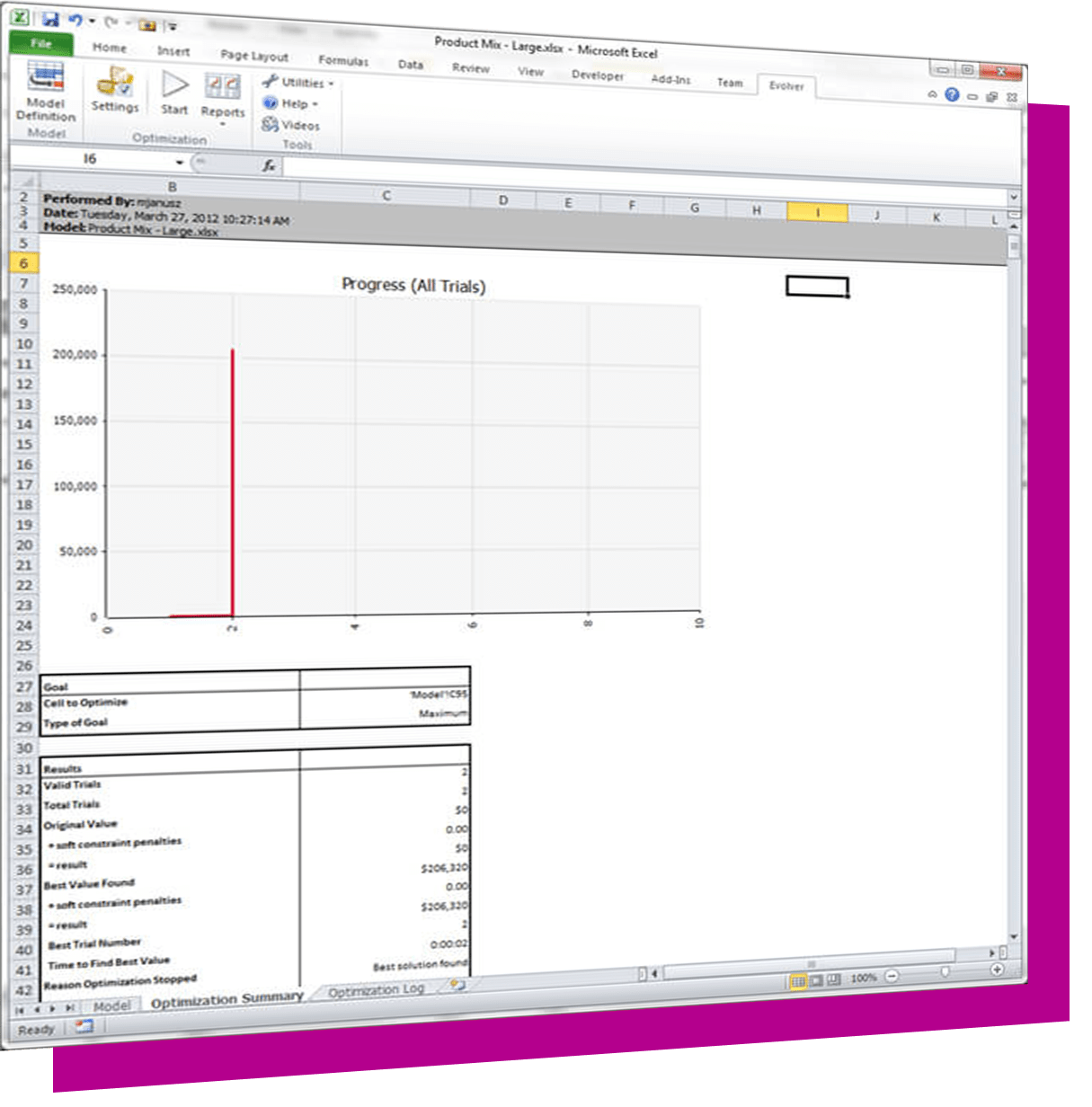
Are you working on complex engineering, scheduling, or resource allocation problems? Do you have problems that Excels Solver claims cant be solved? You need the most innovative solver technology on todays preferred platform. Look no further than Evolver, the revolutionary Windows-based problem-solving tool that works as an add-in to Microsoft Excel.
innovative program.
Evolve the Optimal Solution!
Evolver is an optimization add-in for Microsoft Excel®.
Evolver uses innovative genetic algorithm (GA) technology to quickly
solve complex optimization problems in finance, distribution, scheduling,
resource allocation, manufacturing, budgeting, engineering, and
more. Virtually any type of problem that can be modeled in Excel
can be solved by Evolver, including previously unsolvable problems!
Evolver requires no knowledge of programming or GA theory and ships
with a fully illustrated manual and several examples. Evolver is
available in three versions: Standard, Professional, and Industrial.
The Professional and Industrial versions have increased problem
capacities and advanced features.
keep overnight.
Evolver 4.0: The Most Powerful Evolver Ever!
Anyone who uses Evolver will be amazed at the new Evolver 4.0! Evolver
4.0 is easier to use, with redesigned toolbars and dialog boxes.
Larger problems than ever before can be defined. For faster and
better solutions, the Professional and Industrial versions support
auto-mutation rates and selectable genetic operators. These versions
can adjust the mutation rate during an optimization and focus in
on better solutions. They can also determine which genetic operator
- heuristic crossover, extinction, boundary mutations, and more
- will find the best solution to your optimization problems. Many
Evolver 4.0 users report that they are getting better answers to
their optimization problems that they have ever gotten before -
with any optimizer. And they're getting these answers much, much
faster!
![]() |
Genetic Algorithms and Evolution
In nature, we can observe "problems" being solved through
evolution; species evolve as they adapt to dynamic environments.
We extend this observation into the world of computer software via
Evolver, the most powerful optimization package available. Evolver
uses innovative GA technology to create environments where possible
solutions continuously crossbreed, mutate, and compete with one
another, until they "evolve" into the best solution. As
a result, Evolver can find optimal solutions to virtually any type
of problem, from the simple to the most complex.
The Right Tool For The Job
Evolver includes six highly specialized algorithms for different
types of problems:
- Recipe - a set of variables which can change independently. Like ingredients in a cooking recipe, they are combined to find the best mix.
- Grouping - a collection of elements to be placed into groups. For example, place workers into groups to perform different jobs, or group stocks into equally valued bundles.
- Order - an ordered list of elements. For example, the order in which to let students choose their classes, or the optimal order to execute several interdependent tasks.
- Budget - recipe algorithm, but total is kept constant.
- Project - order algorithm, but some elements precede others.
- Schedule - group algorithm, but assign elements to blocks of time while meeting certain constraints.
Using Evolver: Building Your Model
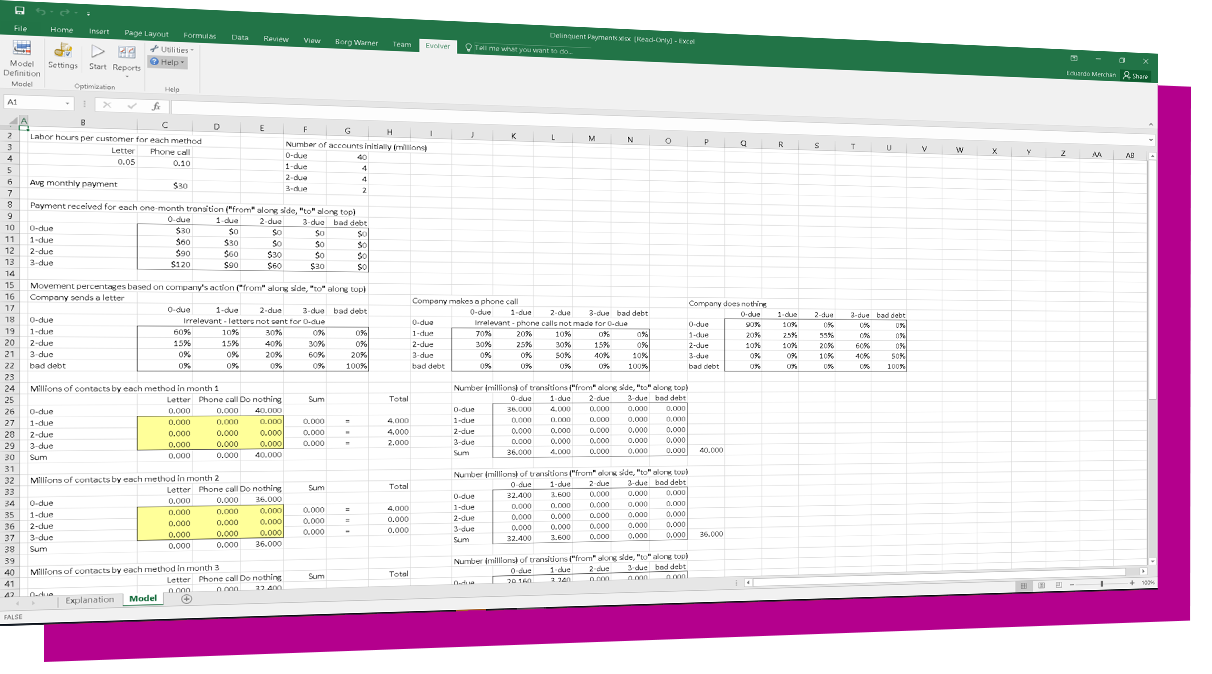
To use Evolver, you must first build a model of your existing problem
using Microsoft Excel. If you already have a model, congratulations!
You are ready to run Evolver. If you dont have a model and
arent sure where to begin, look through the twenty examples
included with Evolver.
Your model can use any functions (including look-up tables and if-then statements) and can even call VBA macros. Unlike traditional optimization tools, Evolver will not force you to make unrealistic assumptions in your model that make the problem abstract. Your model needs to meet these three criteria:
- The model contains variables that interact in some way to produce a result.
- The model recalculates properly for all possible combinations of variables.
- That result is an accurate representation of how good any given solution is.
As long as these criteria are met, Evolver can intelligently recombine variables to find the optimal answer, whether its the best values, the right order, or optimum grouping.
Sometimes its difficult to ensure that the second criteria listed above will be met while building a model. You can check this second criteria by telling Evolver to pause if an error occurs during an optimization. This is a good way to "debug" your model.
![]() |
Using Evolver: Setting Up and Optimizing
Installing Evolver is a snap. After running the installation program,
the Evolver toolbar is added to Excel. To set up Evolver, click
on the Evolver Settings button, then:
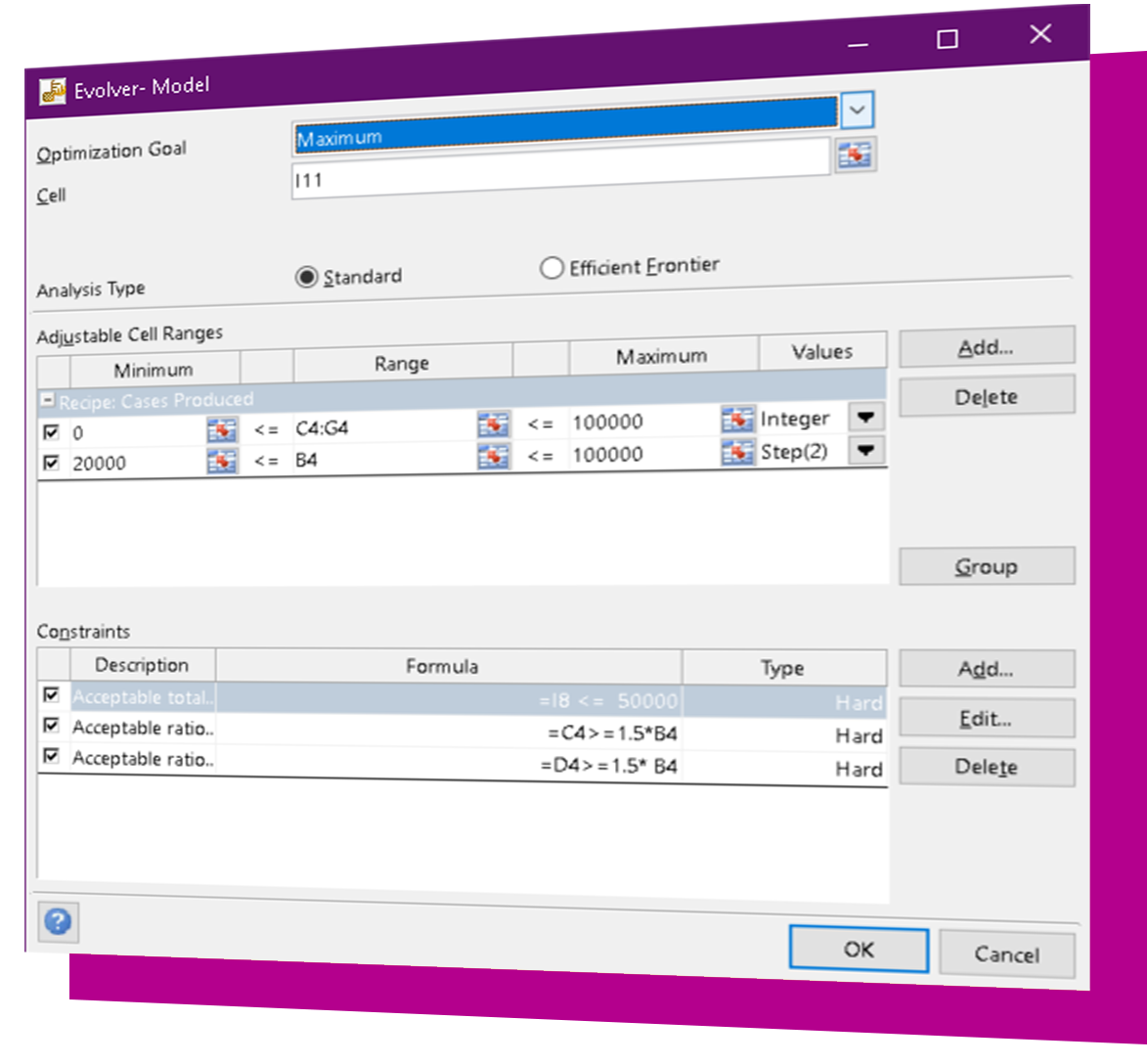
- Specify which spreadsheet cell contains the output to be optimized (the target cell).
- Enter the cells that Evolver can adjust (the variables), along with the solving method to use.
- Specify any constraints that must be met (such as $A$1 <= 5000, $A$2 * $A$3 >= 2000, etc.).
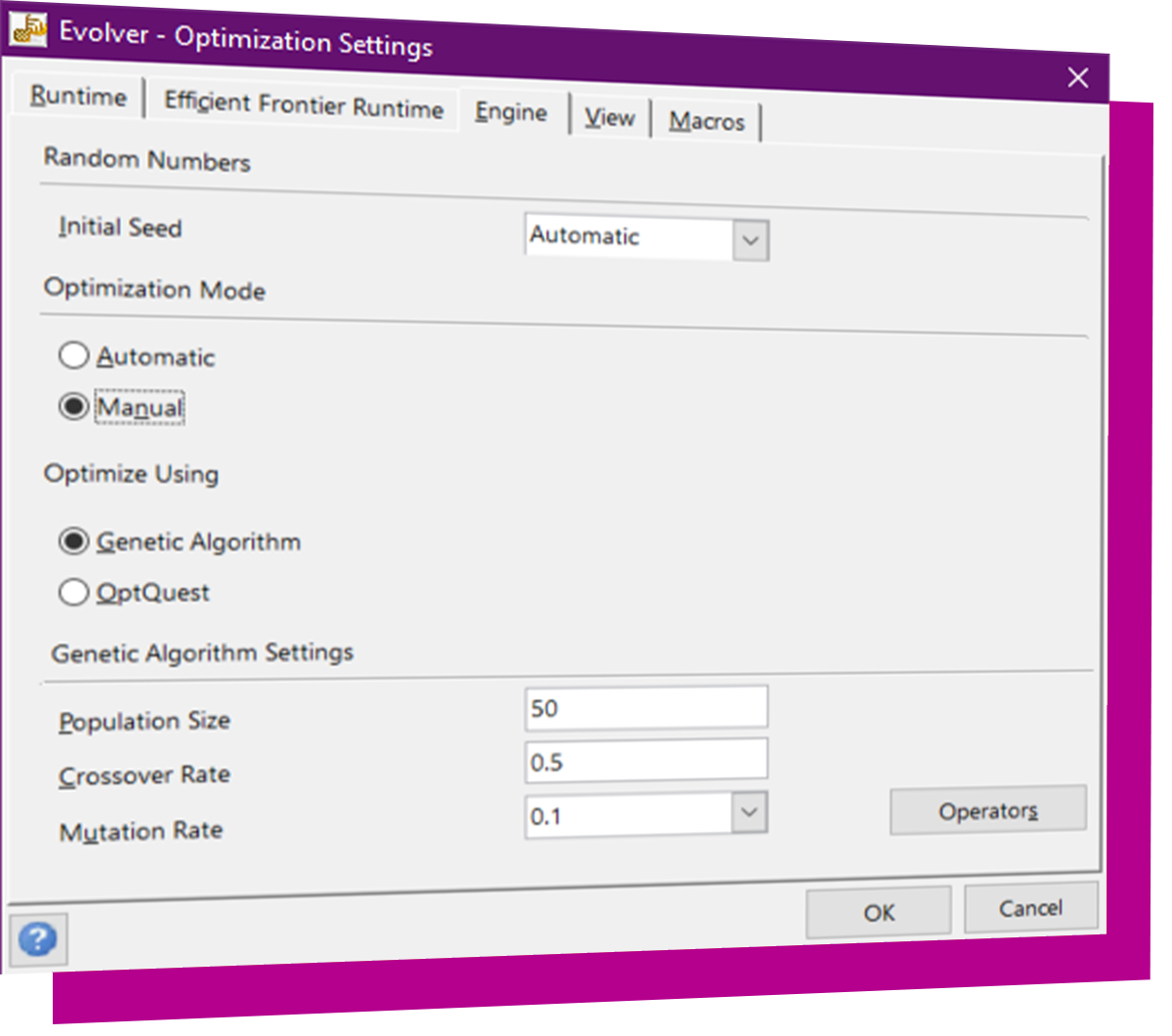
You can also specify the conditions that need to be met for Evolver to stop stop after n trials, stop after n minutes, stop when change in last n trials is less than a particular value, or stop when a particular Excel formula is true.
Thats all there is to it! Click on the "Optimize" button and Evolver will find the optimal solution to your problem! At any time you can Pause or Stop Evolvers progress using the Evolver toolbar.
How Evolver Works
Evolver solves optimization problems using genetic algorithms (GAs).
In a GA, each guess or possible solution to a given problem becomes
an independent "organism" that can "breed" with
other organisms. The spreadsheet model acts as an environment for
the organisms, determining which are "fit" enough to survive
based on their results. Here is a brief description of the process:
- Randomly generate many organisms (possible solutions), and calculate the result each organism produces. This entire "population" of organisms is ranked from best to worst.
- Select good organisms and swap their variables (genes) using crossover and mutation to produce "offspring". If offspring do not produce a good result, two more parents are selected.
- If the offspring organism is good, it is re-inserted into the population.
Evolver vs Excel Solver: A Comparison
Microsoft Excel comes with a built-in optimization tool Solver.
Why would you need to use a tool like Evolver? Solver has a number
of limitations on the types of problems it can solve and the functions
you can use to build your model:
Excel Solver |
Evolver |
|
| Problems Solved | linear simple non-linear |
linear nonlinear combinatorial order / permutation scheduling grouping mixed types customized |
| Method | Simplex Method or Branch-and-Bound Method (linear); GRG2 (non-linear) | Genetic Algorithm |
| Variables | 200 | Standard 80 Professional 250 Industrial Unlimited |
| Excel Functions | supports some | supports all Excel
functions supports macros |
| Results | Local solutions | Global solutions |
Local vs Global Solutions
The methods most optimization programs use including Solver
are "hill climbing" methods. Hill climbing methods
will start with an initial guess and proceed to find the nearest
maximum (or minimum) solution. You can imagine starting at a point
along a curve and moving to the left or right until you reach a
peak or trough. Hill climbing will always find the best answer if
(a) the function being explored is smooth, and (b) the initial variable
values place you near the optimal solution. If either condition
is not met, hill climbing can end up at a local solution rather
than a global solution.
Evolver does not use hill climbing. It uses GA
technology, a stochastic directed searching technique. This method
does not get stuck at local solutions, but instead looks at the
entire range of possible solutions. This not only allows you to
use functions such as look-up tables and if-then statements in your
model that make the function discontinuous, but allows Evolver to
zero in on a global solution. If you have a complex or highly non-linear
problem (as many real-world problems are), you should, and often
must, use Evolver.
What Evolver Can Do
Evolver can find optimal solutions to any function that results
in a number, whether calculated in a single cell, a full sheet of
equations, or the result of some large, complex macro. Evolvers
GA doesnt need to know the specific details of your problem,
or even whether it is solving linear, nonlinear, stochastic (random),
combinatorial, noisy, or probabilistic functions. It doesnt
even need a starting guess to get going. Just click "Optimize"
and the rest is automatic!
The Evolver Watcher
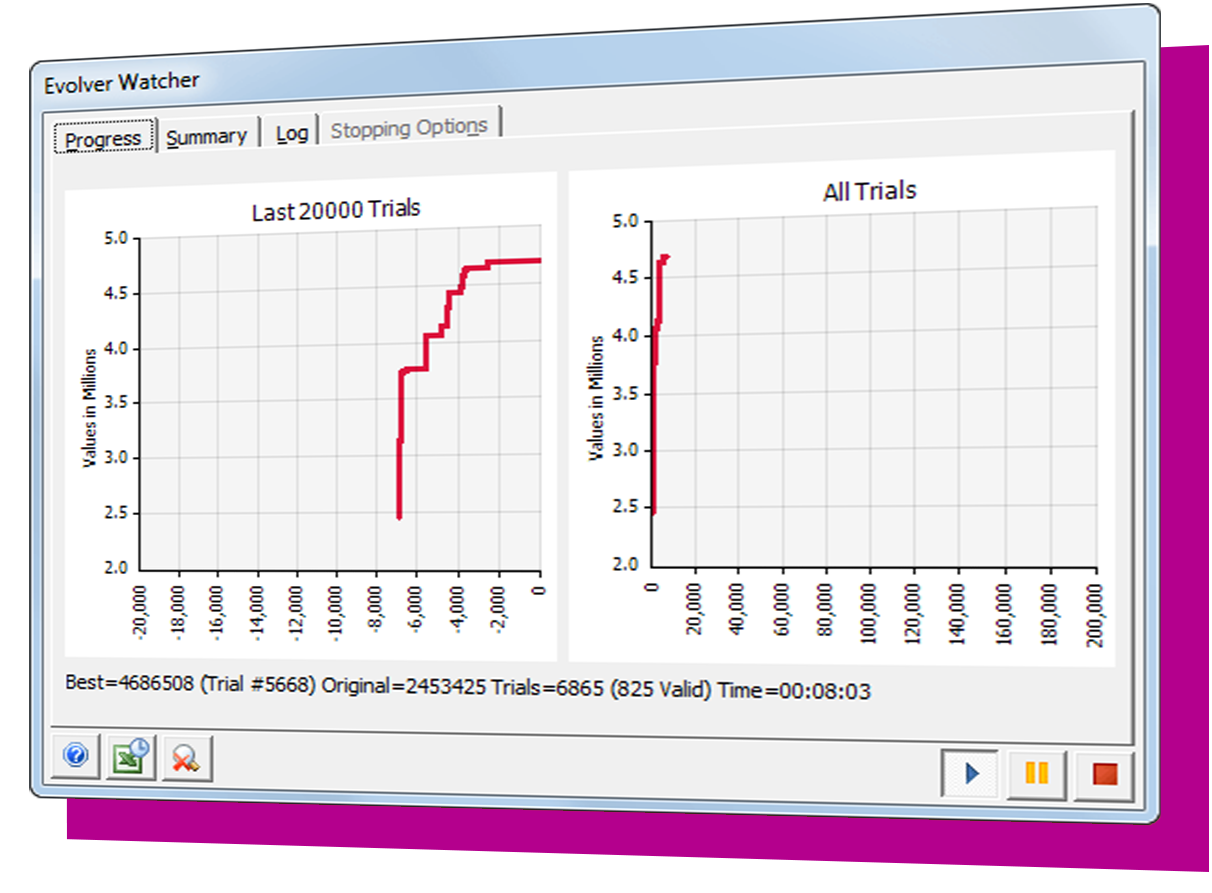
During an optimization, you can bring up the Evolver Watcher.
The Evolver Watcher is a separate application that monitors your
computer for all Evolver activity, whether it is being called from
Excel or from your own application (see Evolver Developers
Kit below). It allows you to change the algorithm parameters, explore
the population, and display graphs, charts, and complete reports
on the status of your problem. These graphs update automatically
while Evolver is running.
Three Versions to Choose From!
Evolver is available in three versions: Standard, Professional,
and Industrial. Each version has different capabilities:
| . | Variables | Auto-Mutation Rates |
| Evolver Standard | 80 | No |
| Evolver Professional | 250 | Yes |
| Evolver Industrial | Unlimited | Yes |
Auto-Mutation Rates
Professional and Industrial versions of Evolver feature auto-mutation
rate adjustment. The mutation rate determines the amount of randomness
Evolver uses when generating new solutions. Evolver Professional
and Industrial can monitor progress toward an optimal solution and
adjust the mutation rate appropriately.
Selectable Genetic Operators
Professional and Industrial versions of Evolver also allow users
to select from a variety of available genetic operators, including
heuristic crossover, extinction, boundary mutations, local search,
and others. Choose the best operator for your specific problem to
find the optimal answer more efficiently. Using a powerful auto-operator
feature, Evolver can test all available operators and identify the
best-performing one for a specific model.
Evolver 4.0 Features
- 20x average speedup over previous versions; some models run up to 100x faster!
- Improved interface redesigned toolbar, dialog boxes
- Support for disjoint ranges and multiple sheets
- Pause on error and update display options
- Controllable via VBA macros for within Excel; can run VBA macros each recalculation (Professional and Industrial versions only)
- Evolver Watcher monitors Evolver activity in Excel and custom applications; generates graphs and reports
- Auto-mutation rate adjustment provides faster and better solutions (Professional and Industrial versions)
- Selectable genetic operators provides more accurate solutions to various problems; auto-operator feature chooses the optimal operator (Professional and Industrial versions)
Evolver Developer's Kit Also
Available
The Evolver
Developers Kit (EDK) allows developers to add the
power of Evolver to their custom Windows applications. The EDK can
be used by any Windows programming environment that can access Dynamic
Link Libraries (DLLs), such as Visual Basic, C++, Delphi and more.
The EDK gives programmers access to Evolvers powerful GA technology
and allows them to use Evolver where they need it instead of linking
to Excel. Programs developed with the EDK can run faster than similar
models designed in Excel. EDK users can also develop new solving
methods that can be accessed by Evolver. The EDK comes with complete
documentation and examples in Visual Basic and Visual C++. Contact
your Palisade Sales Representative for more information on the EDK
and on distributing EDK-developed programs.
COMPATIBILITY: Evolver is compatible with Excel versions 2000 through 2003